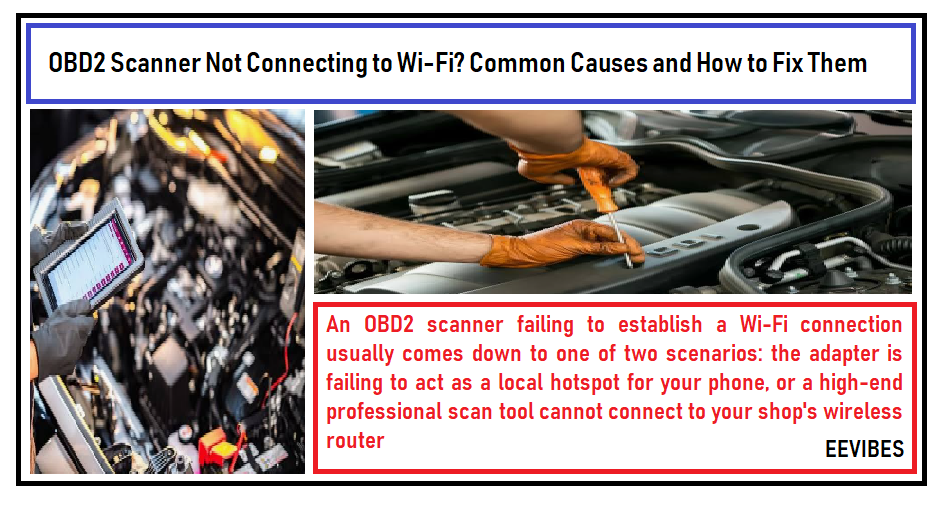
A wireless OBD2 scanner makes it easier to diagnose vehicle problems without constantly handling cables or using a professional scan tool. However, the convenience can quickly turn into frustration when the adapter fails to connect to a smartphone, a diagnostic application cannot detect the device, or the scanner connects to Wi-Fi but cannot communicate with the car.
The good news is that a failed connection does not necessarily mean your OBD2 adapter is defective. The problem may involve an incompatible application, incorrect wireless settings, a weak adapter signal, insufficient power at the diagnostic port, or a communication issue between the adapter and the vehicle’s onboard computer.
This guide explains how to troubleshoot an OBD2 scanner that will not connect to Wi-Fi, identify the source of the problem, and restore a reliable connection without replacing equipment unnecessarily.
How Does a Wi-Fi OBD2 Scanner Work?
An On-Board Diagnostics II (OBD2) scanner communicates with a vehicle’s electronic control units to retrieve supported diagnostic trouble codes, monitor sensor readings, and provide information about engine performance. A wireless OBD2 adapter connects to the vehicle’s diagnostic port and communicates with compatible software on a smartphone, tablet, or laptop.
Unlike a traditional wired scanner, a Wi-Fi OBD2 adapter typically creates its own wireless network. The phone or computer connects directly to this network to exchange diagnostic information with the adapter. Consequently, the adapter’s Wi-Fi network may not provide access to the internet.
This distinction is important when troubleshooting. A smartphone may display “Connected without internet” even though the local connection is functioning as intended. The correct diagnostic application and connection settings are still required to communicate with the vehicle.
It is also important to distinguish between the wireless connection and the vehicle connection. Connecting a phone to an adapter does not automatically mean that the adapter can communicate with the engine control unit. Each connection must work independently.
1. Confirm That Your OBD2 Adapter Is Receiving Power
Before troubleshooting Wi-Fi settings, check whether the adapter is receiving power from the vehicle’s diagnostic port.
Locate the OBD2 port, which is commonly found beneath the dashboard near the steering column, although its position varies by vehicle. Insert the adapter securely and check its indicator lights or other signs of operation.
If the adapter does not power on, possible causes include an incompletely inserted connector, a vehicle-specific fuse problem, a damaged adapter, or a fault with the diagnostic port.
Try the following checks:
- Make sure the adapter is fully seated in the OBD2 port.
- Follow the vehicle manufacturer’s instructions for switching on the ignition.
- Check the relevant fuse using the vehicle owner’s manual.
- Inspect the connector for visible damage without bending or probing its pins.
- If appropriate, test the adapter on another compatible vehicle.
Some vehicles supply power to the diagnostic port even when the ignition is off, while communication with the vehicle’s control modules may require the ignition to be switched on. The exact procedure depends on the vehicle.
If the adapter remains unpowered, concentrate on the vehicle’s power supply and the adapter itself before changing any wireless settings.
2. Connect to the Correct Wi-Fi Network
One of the most common causes of a Wi-Fi OBD2 connection failure is connecting the phone or laptop to the wrong network.
When the adapter is powered, it may broadcast a network name such as WiFi_OBDII, OBDII, or another manufacturer-specific identifier. The actual name varies by model.
Open the Wi-Fi settings on your device and look for the network identified in the adapter’s instructions. Connect to that network and enter the required password if prompted.
After connecting, open your diagnostic application and select Wi-Fi as the communication method if the application offers multiple connection types.
Avoid assuming that the adapter will connect through your home router. Many basic Wi-Fi OBD2 adapters establish a direct local connection instead.
If you are using a Bluetooth adapter, these Wi-Fi instructions do not apply. Select the supported Bluetooth connection type and follow the manufacturer’s pairing procedure.
3. Fix the “Connected Without Internet” Problem
A Wi-Fi OBD2 scanner may establish a connection successfully while the phone reports that the network has no internet access. This is not necessarily an error.
The adapter’s wireless network is designed to exchange information with the diagnostic application. It may not connect to your broadband router or provide an internet gateway.
Some smartphones automatically switch away from networks that cannot access the internet. If this happens, the phone may disconnect from the adapter and reconnect to a familiar home or mobile hotspot network.
To troubleshoot the issue:
- Open your phone’s Wi-Fi settings.
- Connect to the OBD2 adapter’s network.
- If prompted, choose the option to remain connected without internet, where available.
- Check for settings such as automatic network switching or avoiding poor Wi-Fi connections.
- Temporarily disable automatic switching if your device provides that option.
- Return to the diagnostic application and attempt to connect again.
Menu names differ between Android devices, operating system versions, and manufacturers. Follow your device’s documentation rather than looking for one universal setting.
Also, avoid changing advanced network settings unless your adapter’s manual specifically requires it. Incorrect network configuration can create additional connection problems.
4. Check Diagnostic App Compatibility
Even when the adapter appears in the Wi-Fi settings, the diagnostic application may fail to recognize it.
This can happen because the app supports only particular adapter types, uses a different connection method, or expects specific communication settings.
Before reinstalling software or purchasing a new scanner, check the following:
- Does the application explicitly support Wi-Fi OBD2 adapters?
- Is the selected connection type set to Wi-Fi rather than Bluetooth or USB?
- Does the adapter require a particular application?
- Is the application compatible with your phone’s operating system?
- Does the software require an adapter-specific IP address or port number?
Some adapters use particular network addresses and communication ports, but these values are not universal. Obtain the correct settings from the manufacturer’s manual instead of copying values from another adapter’s setup guide.
If the application offers automatic connection configuration, try that option first. Otherwise, enter the documented settings carefully.
You can also restart the application and check whether a newer version is available from an official app store or the manufacturer’s website.
5. Troubleshoot IP Address and Network Configuration Errors
Certain Wi-Fi OBD2 adapters communicate with diagnostic applications through a local IP address and a specified network port.
If the phone joins the adapter’s network but the application continues to report a connection error, the network configuration may be incorrect.
Start by reviewing the adapter’s instructions. Confirm whether the device expects automatic IP configuration through DHCP or a manually configured address.
If the manufacturer specifies a static IP address, subnet mask, gateway, or port, enter those values exactly as documented. Do not assume that every ELM327-compatible adapter uses the same configuration.
If your device was previously configured for a different adapter, review the saved connection profile and remove outdated settings when appropriate.
Restart the adapter and application after making the changes. If the problem persists, test with the manufacturer’s recommended software or contact technical support.
Advanced configuration should be a later troubleshooting step, not the first response to a simple connection failure.
6. Check Whether Another Device or App Is Using the Adapter
Some diagnostic interfaces support only one active connection at a time. If another phone, tablet, or diagnostic application is already communicating with the adapter, a second device may fail to connect.
For example, a phone used during an earlier repair may reconnect automatically when the adapter is powered again.
To eliminate this possibility, close other diagnostic applications, disconnect other phones or computers from the adapter’s network, and restart the connection on your intended device.
If the adapter has a reset or reconnection procedure, follow the manufacturer’s instructions.
Do not perform a factory reset unless necessary, because it may erase saved settings or pairing information.
After removing competing connections, reopen the diagnostic application and attempt to establish a fresh connection.
7. Improve Wi-Fi Signal Strength Around the Vehicle
Wireless signal quality can affect the stability of an OBD2 connection, particularly when the adapter is poorly positioned or the phone is several metres away.
Metal vehicle structures, nearby electronic equipment, and physical obstructions can influence wireless reception. However, a weak signal is only one possible cause of a failed diagnostic session.
Keep the phone or laptop close to the adapter while testing. If the connection becomes stable at a shorter distance, investigate the wireless link before changing other settings.
For a home garage, improving general network coverage may also help with online repair manuals, software downloads, cloud-based diagnostic services, and other internet-dependent tasks.
Useful improvements include positioning the router in a more open location, reducing unnecessary obstructions, or installing a properly connected access point where coverage is poor.
For more details, see our related guide: How to Improve WiFi for OBD2 Diagnostics and DIY Car Repairs.
Remember that improving your home Wi-Fi does not automatically improve a direct Wi-Fi connection between the phone and an OBD2 adapter. Identify the actual connection path before investing in additional networking equipment.
8. Check Vehicle Compatibility and Ignition Settings
If the phone connects to the adapter but the application cannot identify the vehicle, the problem may be on the vehicle communication side rather than the wireless side.
Begin by confirming that your vehicle supports the diagnostic functions offered by the scanner. Compatibility depends on the vehicle’s model year, market, diagnostic protocol, and the capabilities of the adapter and application.
Follow the manufacturer’s recommended ignition procedure. Some vehicles require the ignition to be in the ON or RUN position before the control modules respond, while hybrid and electric vehicles may have different procedures.
Next, check that the correct vehicle make, model, year, and engine have been selected in the application, if applicable.
A generic OBD2 adapter may support basic emissions-related engine diagnostics without providing access to every system. Functions involving ABS, airbags, transmission modules, manufacturer-specific data, or advanced service operations may require a compatible enhanced diagnostic tool.
If the adapter connects but cannot establish communication with the vehicle, consult the vehicle-specific troubleshooting information rather than repeatedly changing Wi-Fi settings.
9. Update the App and Adapter Firmware
Outdated software can cause connection instability, compatibility problems, or incorrect handling of certain vehicle protocols.
Check for updates to the diagnostic application through its official distribution channel. If your adapter supports firmware updates, verify whether the manufacturer recommends an update for the problem you are experiencing.
Before updating firmware, read the manufacturer’s instructions carefully. Use a reliable power supply and a stable connection, and do not interrupt the update process.
Firmware updates should be obtained from official sources. Avoid unofficial files or applications that promise unrestricted vehicle access, as these may introduce security or compatibility risks.
If the connection fails immediately after an update, check the manufacturer’s release notes and support documentation for known issues or recovery procedures.
10. Restart the Complete Connection in the Correct Order
When the cause is unclear, a controlled restart can help eliminate temporary connection problems.
Use the following sequence while the vehicle is safely parked:
- Close the diagnostic application.
- Disconnect the phone or laptop from the adapter’s Wi-Fi network.
- Switch off the ignition according to the vehicle’s instructions.
- Remove the adapter if the manufacturer recommends doing so.
- Wait briefly before reconnecting the adapter.
- Switch on the ignition as instructed.
- Reconnect the phone or laptop to the correct adapter network.
- Open the diagnostic application and select the correct connection type.
- Attempt to communicate with the vehicle again.
If the application still fails, record the exact error message. Determine whether the failure occurs when joining the Wi-Fi network, opening the application, detecting the adapter, or communicating with the vehicle.
That distinction makes further troubleshooting much more effective.
11. Know When to Replace the Adapter
Replacing an adapter should be a last resort rather than the first response to a failed connection.
Consider testing the device with another compatible phone, application, or vehicle where practical. These comparisons can help distinguish an adapter fault from a software or vehicle issue.
A replacement may be appropriate if the adapter repeatedly fails across supported devices and vehicles, has visible damage, overheats abnormally, or cannot establish a connection despite following the manufacturer’s instructions.
When selecting a replacement, check operating system compatibility, supported vehicle protocols, connection type, and the diagnostic functions you actually need.
Do not assume that all products advertised as ELM327-compatible provide the same features or reliability. A scanner designed for basic fault-code reading may not support advanced module access or bidirectional tests.
For important programming procedures, use a compatible, manufacturer-approved interface and follow the vehicle manufacturer’s power and connection requirements. A wireless connection that is adequate for routine code reading may not be suitable for every service operation.
Wi-Fi vs. Bluetooth vs. USB: Which OBD2 Connection Is Best?
Choosing the appropriate connection method can reduce recurring diagnostic problems.
Wi-Fi OBD2 adapters are useful when the scanner and diagnostic application support a direct wireless network. They may require the phone or laptop to leave its normal Wi-Fi connection during diagnostics.
Bluetooth OBD2 adapters are convenient for compatible phones and tablets. They typically offer a straightforward wireless connection, although pairing requirements and supported Bluetooth modes vary by device.
USB OBD2 interfaces provide a wired connection to a compatible computer. They avoid the wireless link between the computer and interface, but still depend on the correct drivers, software, hardware compatibility, and vehicle communication.
No single option is best for every user. For occasional code reading, a compatible wireless adapter may be sufficient. For workshop tasks where connection stability is particularly important, a suitable wired interface may be preferable.
Always check the diagnostic tool’s supported functions and vehicle coverage before purchasing.
Safety and Security Tips for Wireless Vehicle Diagnostics
Wireless diagnostic adapters introduce additional security considerations because they communicate with a phone or computer and, through the diagnostic port, with vehicle systems.
Follow these precautions:
- Purchase diagnostic equipment from reputable suppliers.
- Use official applications and firmware updates.
- Change default passwords or access credentials when the device supports this feature.
- Disconnect the adapter when it is not required, especially if the manufacturer advises against leaving it connected.
- Avoid using unknown applications that request unnecessary permissions.
- Do not perform coding, module programming, or other advanced procedures unless the tool and procedure are appropriate for your vehicle.
- Follow the manufacturer’s instructions for battery support and power requirements during programming.
Some diagnostic adapters remain powered when the vehicle is switched off. Leaving one connected may contribute to battery drain, depending on the adapter and vehicle.
Also, perform diagnostic work with the vehicle parked safely. Do not attempt to troubleshoot a phone or scanner while driving.
Frequently Asked Questions
Why does my OBD2 scanner connect to Wi-Fi but not to the car?
The phone may have established a wireless connection with the adapter, but the adapter may not be communicating with the vehicle’s control module. Check the ignition state, adapter seating, vehicle compatibility, selected vehicle profile, and supported diagnostic protocol.
Why does my phone say the OBD2 Wi-Fi network has no internet?
Many Wi-Fi OBD2 adapters create a local network that carries diagnostic data without providing internet access. The warning can be normal. Keep the phone connected to the adapter’s network if the application requires that connection.
Can I use my home Wi-Fi router with a Wi-Fi OBD2 scanner?
It depends on the adapter. Many basic Wi-Fi adapters create their own network rather than joining the home router. Check the device manual to determine whether it supports direct connection, infrastructure mode, or another networking arrangement.
Why does my OBD2 adapter keep disconnecting?
Possible causes include automatic network switching, interference, loose connector seating, a competing application, adapter overheating, or a power problem. Test close to the adapter, remove competing connections, and check the manufacturer’s troubleshooting instructions.
Will a Wi-Fi extender fix my OBD2 scanner?
Not necessarily. An extender can help improve internet coverage in a garage, but it generally will not strengthen a separate direct Wi-Fi connection created by the diagnostic adapter. Identify which wireless link is failing before purchasing networking equipment.
Can every Wi-Fi OBD2 scanner read ABS and airbag codes?
No. Supported functions depend on the scanner hardware, software, vehicle, and manufacturer-specific diagnostic access. A device that reads generic engine codes may not support ABS, airbag, transmission, or other control modules.
Final Thoughts
An OBD2 scanner that will not connect to Wi-Fi can be frustrating, but the problem is often easier to isolate when troubleshooting follows the correct order.
Start by checking adapter power and the wireless network. Next, verify the diagnostic application’s compatibility, connection type, and network settings. If the phone connects successfully but the vehicle remains undetected, investigate ignition requirements, vehicle compatibility, and the diagnostic interface itself.
Most importantly, distinguish between a problem with your garage’s internet connection and a problem with the local connection between the OBD2 adapter and your device. These are different communication paths and may require completely different solutions.
With a systematic approach, you can identify the likely cause, avoid unnecessary equipment purchases, and make your DIY vehicle diagnostics more reliable.