Are you trying to join a Blooket game but getting an invalid game ID, a connection error, or a page that refuses to load? You are not alone. Students may encounter these issues when joining classroom quizzes, while teachers can also experience problems when hosting live games. Fortunately, for most Blooket join-not-working errors, they can be investigated with a few simple troubleshooting steps.
The problem may be caused by an incorrect game code, a session that has ended, browser extensions, school network restrictions, outdated browser settings, or an unstable internet connection. In this guide, we explain 10 practical ways to fix Blooket joining problems so you can get back to your classroom quiz without unnecessary delays.
How to Join a Blooket Game Correctly
Before troubleshooting, make sure you are using the official Blooket joining page. Visit play.blooket.com and enter the game ID provided by your teacher or host. You can also join through a QR code or a direct join link if the host has shared one.
Blooket game IDs are seven-digit codes according to its official joining instructions. Students generally do not need an account to participate in live games, although signing in is necessary for certain account-related features. If the game ID is rejected, verify the code with the host before changing your browser settings.
10 Ways to Fix Blooket Join Not Working
1. Check Whether the Blooket Game Code Is Correct
An incorrect game ID is one of the first things to check when Blooket refuses to let you join. A single mistyped digit can prevent you from entering the session. Carefully compare the number on your screen with the code provided by your teacher.
Make sure you have entered all seven digits without accidentally adding spaces or leaving out a number. If the code was shared in a classroom presentation, ask your teacher to display it again or send you the official join link. Avoid relying on random codes posted on websites because they may not belong to an active game.
2. Ask Your Teacher for a New Game ID
If you receive an invalid Blooket game ID message despite entering the number correctly, the session may have ended or the host may have closed it. A game code should not be assumed to work indefinitely.
Ask your teacher to confirm that the game is still active and provide a fresh code if necessary. If you are joining after the game has started, the host may also have disabled late joining. In that case, the host will need to check the session settings or explain how you can participate.
3. Disable Browser Extensions Temporarily
Browser extensions can sometimes interfere with Blooket’s features. Its official Help Center specifically identifies ad blockers and other Chrome extensions as possible causes of problems with logging in, joining games, or hosting sessions.
To test whether an extension is responsible, open Blooket in a private or Incognito window if your browser allows it. Keep in mind that some extensions may still be enabled in private browsing, depending on your settings. If Blooket works there, review your extensions and temporarily disable them one at a time to identify the cause. Only disable extensions you trust and re-enable them after testing.
4. Check Whether Your School Network Blocks Blooket
Sometimes Blooket works at home but fails on a school computer or campus Wi-Fi. This can happen when a school firewall or network filter blocks services required by the platform.
Blooket’s official troubleshooting guidance notes that access to firebaseio.com may be necessary for joining or hosting games. Its connection debugger also checks whether essential services and WebSocket connections are available.
If you suspect a network restriction, try a permitted alternative network, such as your home Wi-Fi. If the problem occurs only on the school network, ask your teacher or IT administrator to review the school’s filtering settings and Blooket’s official network requirements. Do not attempt to bypass school security policies.
5. Refresh the Page and Reopen Blooket
A temporary browser error can prevent the game ID field or joining page from responding properly. Refreshing the page is a simple first step that may resolve a stalled loading process.
Close the Blooket tab, reopen the official join page, and enter the current game code again. If the page still does not respond, close unnecessary tabs and restart your browser. Make sure you have the correct code before trying repeatedly.
6. Clear Your Browser Cache
Your browser stores temporary files to help websites load faster. Occasionally, cached files can contribute to loading or display problems.
In Chrome, press Ctrl + Shift + Delete on Windows, select the cached images and files option, and clear the cache. You generally do not need to delete saved passwords for this troubleshooting step. Then reopen Blooket and try joining the game again.
Menu names may vary slightly between browsers. If you are unsure which option to select, review your browser’s official instructions before clearing any browsing data.
7. Update Your Browser or Try Another Supported Browser
An outdated browser or an incompatible browser configuration can cause problems with interactive websites. If Blooket loads incompletely, freezes, or fails to respond when you select the join button, check whether your browser has an available update.
Install updates from the browser’s official settings or website, restart the browser, and try again. You can also test Blooket in another up-to-date browser. If the game works in one browser but not another, the issue may be related to browser settings, extensions, or compatibility rather than the game code itself.
8. Check Your Internet Connection
A slow or unstable connection can interrupt communication between your device and Blooket. You might see a blank page, a loading screen that never finishes, or repeated disconnections during a live quiz.
Open another trusted website to check whether your internet is working normally. If other sites are also slow, restart your router if you control it, move closer to the Wi-Fi access point, or switch to another permitted connection. Avoid repeatedly refreshing during an active game if you are already connected and answering questions.
9. Enable Required Browser Features
Blooket’s official system debugger checks several browser capabilities, including WebSockets, LocalStorage, cookies, and WebGL. These features support live-game communication, temporary browser data, login functionality, and certain visual effects.
If you can open the site but cannot join a live session, visit the official Blooket connection debugger and review the results. If a required feature fails, check your browser settings or ask your school’s IT team to investigate any managed restrictions. For example, WebSocket connections to Blooket may need to be permitted by the network firewall.
10. Check Whether Blooket or the Game Session Is Experiencing a Problem
Sometimes the issue is not your device at all. The host may have ended the session, disabled late joining, or encountered a technical problem. Blooket’s service may also experience temporary disruptions.
First, confirm with your teacher that the game is still running and that new participants are allowed to join. If the game should be active but the problem persists across different browsers or networks, run the official debugger and consult the Blooket Help Center. You can also contact Blooket support at contact-us@blooket.com for further assistance.
Common Blooket Joining Errors and Their Solutions
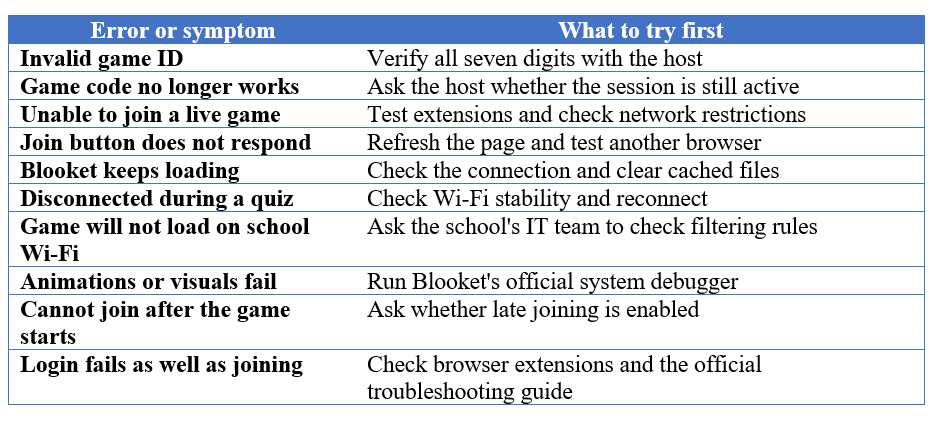
The following table summarises common symptoms and the first troubleshooting step to try.
Frequently Asked Questions
Why is Blooket saying my game ID is invalid?
The code may contain a typing mistake, or the session may no longer be active. Check the seven-digit ID with your teacher and request a new one if needed.
Can I join Blooket without an account?
Yes. Blooket’s official instructions state that students can join live games without creating an account. You can enter the game ID, provide a nickname if prompted, and follow the host’s instructions.
Why can I not join Blooket on school Wi-Fi?
Your school’s firewall or filtering settings may block services required by Blooket. Ask the school’s IT administrator to check the network requirements rather than trying to bypass its restrictions.
Why does Blooket work in Incognito mode but not in a normal window?
A browser extension or stored browser data may be interfering with the website. Test your extensions individually and clear the cached files if necessary.
Also read here:
How to Stop Gimkit Hacks and Cheating: A Complete Teacher Guide
What should I do if none of these fixes work?
Run the Blooket system debugger, check the official Help Center, and contact Blooket support if the problem continues. Include the exact error message, your browser, and the troubleshooting steps you have already tried.
Final Thoughts
If Blooket join is not working, start with the simplest checks: verify the game ID, confirm that the host’s session is still active, and open the official joining page. If those steps do not help, investigate browser extensions, cached files, connection quality, and school network restrictions.
For persistent problems, Blooket’s official connection debugger is a useful next step because it checks whether the browser and network can access services needed for live gameplay. With the right troubleshooting approach, you can identify whether the problem lies with the code, browser, connection, or game session.
Helpful resources: